Premise
In setting up a number of projects I have found having a server running on the public internet to be very useful.In the past, this had been possible using Dynamic DNS and punching a hole in my home NAT. This has worked pretty well, but there are sometimes issues with DNS or my home internet that has caused unwanted instability.
As a result, I had looked around for a cheap and reliable internet host where I could run my projects. It turns out this is called a VPS (Virtual Private Server), and they're great.
Below I go over how I've made use of that host more efficiently than I had planned to, and how surprisingly simple it is.
Big Idea
I wanted to write some software, have it live on the public internet, open arbitrary ports, and host whatever content suitable.A VPS basically gives you full control over a Linux (or other) install.
Features I cared the most about:
- Static IP address
- Full root access to a Linux (or other) host
- Fully open ports
- Install and run any software you like
- Effectively unlimited data transfer
The VPS I found satisfies my requirements.
Problems
Once set up, I ran some software on the standard HTTP port 80. I later found I had other unrelated software I wanted to run, but also have run on port 80. This wasn't immediately possible.Further problematic, the software needed to run on 80 and 443 for HTTPS (SSL), for both sets of software.
Ideally these would also live on different sub-domains for ease of management.
I didn't want to purchase another VPS, but wasn't sure how to overcome the fact that there was a single IP address and Port that I wanted to make use of.
Solution
NGINX is the solution. It is a HTTP load balancer and Webserver.I have no need for a Webserver per-se, but I did want to make use of its ability to support Virtual Servers.
Virtual Servers in the NGINX context means that if a connection comes in on, say, port 80, and the browser wants to visit dom1.example.com, NGINX can route that request to an arbitrary alternate host/port than, say, dom2.example.com.
In short, I can:
- Set up a VPS
- Install NGINX and run on port 80
- Configure NGINX to know about two sub-domains (dom1 and dom2)
- dom1 gets routed to localhost:1080
- dom2 gets routed to localhost:2080
- Run my own software
- Software #1 listens on port 1080
- Software #2 listens on port 2080
It is also the case that NGINX can re-direct to different servers depending on the URL requested, but I have no interest in that, so I didn't play with it much, but looks pretty straightforward.
I'll lastly say that the NGINX configuration is extremely simple and intuitive. This is in contrast to what I consider to be a confusing and ugly Apache setup, for example.
Sub-Domains
I can further differentiate the software by associating a sub-domain with each piece of software (the dom1 and dom2 example above).
To easily do this, I purchased a Domain from Google Domains. Google Domains incidentally has an excellent and simple interface.
Basically you can set as many sub-domains as you want, and point them all toward the Static IP address of the VPS.
Since all requests hit port 80, they're really hitting NGINX. NGINX just forwards them along to the software running on that system on the configured ports.
SSL
As noted above, I also have a requirement to support SSL, in part due to Chrome's new requirement that a number of javascript APIs can only be served up via SSL (see old post here).
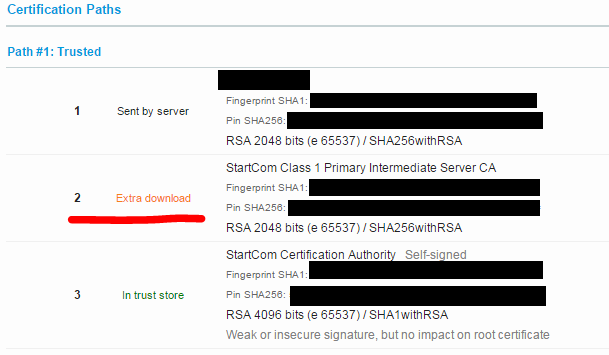
To do that, I set up an account with StartSSL and got some free certificates for each of my subdomains.
The NGINX configuration easily supports SSL key and cert files, and can forward traffic along once connected.
Even more beneficially, you can run software that doesn't speak SSL, as NGINX is more than happy to forward inbound SSL traffic to a non-SSL port on the other side.
See a prior post for overcoming some issues on StartSSL certs on mobile (link).
Diagram
This diagram does not nearly capture the full detail of what I described above, but hopefully somewhat useful.

Final Notes
The setup above leads to effectively unlimited sub-domains, and instances of software running on web-facing HTTP port 80.You may note that the exact same configuration could be achieved at home behind a Dynamic DNS entry, which is true, but I value the reliability and presence on the internet more than the cost of the hosting.
The VPS I use costs around $5 per-month, and in addition to what I described above, allocates a single CPU core and 1G of RAM.
For my purposes, this is more than sufficient.
Links
VPS - Provided by OVH (link)Domains - Provided by Google Domains (link)
NGINX - Provided by NGINX (nginx.org, nginx.com)
SSL - Provided by StartSSL (link)